Select Reserve
in the MRM Task Bar to start a new reservation. The Reservation Details form
appears.
Enter the start date for your recurrence (this date will be the same in the end date field as this is only considering the first occurrence). Enter the start and end times for the reservation. Check the Recurrence checkbox. The Recurrence Form displays.
Select an option for your recurrence pattern. In this example, we will create a Weekly recurrence.
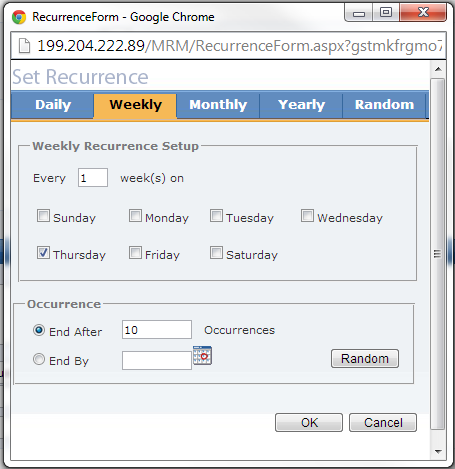
The Recurrence Form defaults to a pattern
of every week. The form also automatically selects Thursday
as the weekly recurrence day because the start date was a Thursday. You
can adjust this selection or add additional days.
Set an end to the recurrence by specifying
a number of occurrences or selecting an end date.
The Random
button (if enabled in your instance) displays here giving users the
opportunity to make adjustments to individual dates. Clicking
the Random button here will take you to the Random Recurrence tab
where all selected dates will be displayed. Dates can be
removed and additional dates added.
Click OK. The recurrence pattern is saved, and you are returned to the Reservation Details form. The recurrence pattern displays just below the end date field.
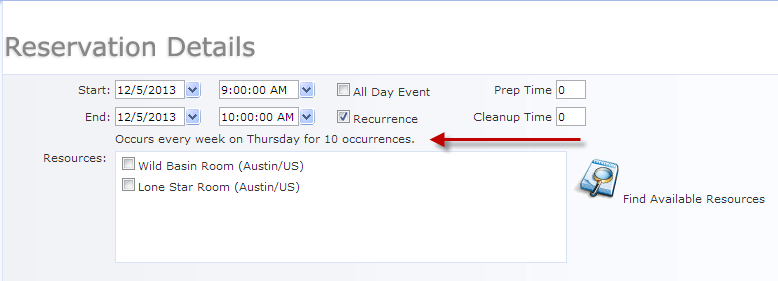
Select Find
Available Resources. The Find
Resources form appears. Select Find. MRM
will return all results that match your search criteria and are available
for ALL dates in the
recurrence pattern.
Check the box next to the resource you
want to reserve and click Select.
You are returned to the Reservation Details form and the selected resource has been assigned. All available tabs now display. Complete all details and add attendees and services as needed. Save and Close or Save and Invite to complete the reservation. You will return to the Reservation Grid where the recurring reservation will display. Recurring reservations are designated on the Grid with the recurrence symbol.
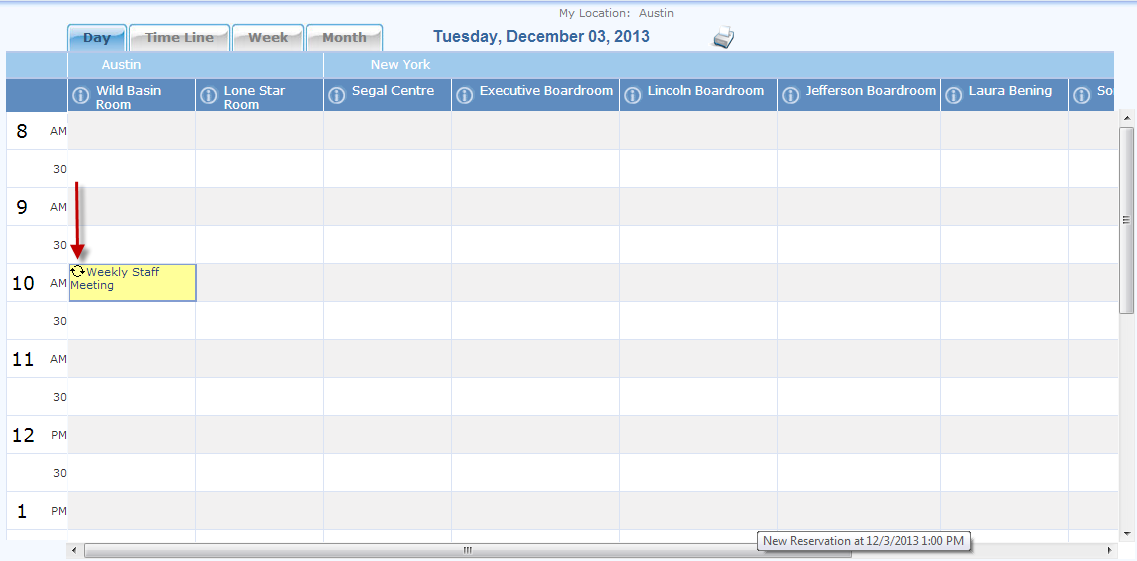
|
|
We are interested in hearing from you about our products. Visit our customer support portal. Written for Meeting Room Manager 10.0, March 2014, Copyright © 2014 Asure Software Inc. |