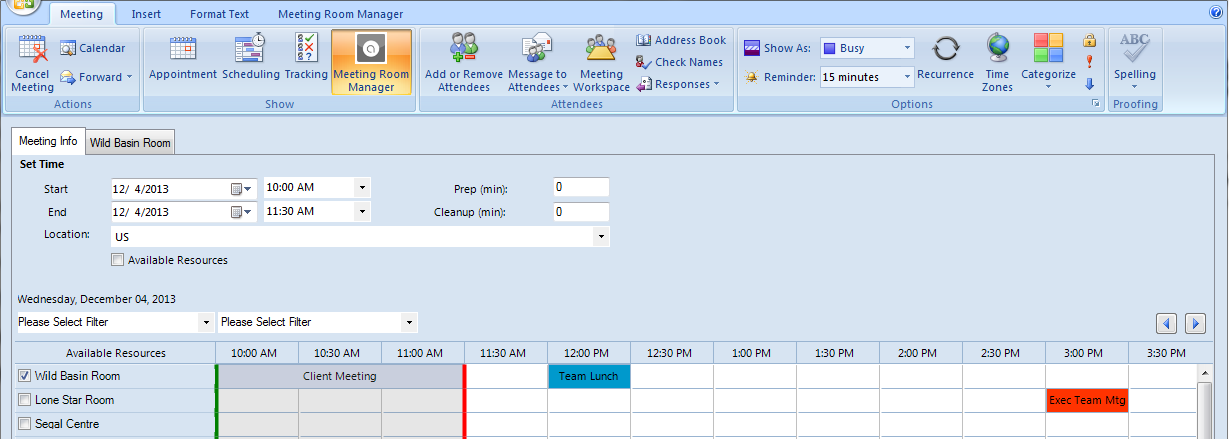
To edit an existing
Outlook reservation, double-click on the reservation in your Outlook
calendar to open it. If you are editing the date or time,
select the MRM Tab so you can verify your resource is available at
the new time.
Adjust the date or time as needed and select a new resource if needed. Please note, there is not an option to copy details from one resource to another. If you remove the original resource, all details and services must be re-entered.
 For more complex reservations, it is recommended to edit resources
in the MRM Web Client where Copy Tab functions are available.
For more complex reservations, it is recommended to edit resources
in the MRM Web Client where Copy Tab functions are available.
Select the
resource tab and edit details and services as needed.
If the meeting includes attendees, select the Appointment Tab to send an updated invitation.
Using Drag and Drop on your Outlook Calendar
If you attempt to use the Drag and Drop function in Outlook to move an appointment that has an MRM resource attached, you will receive the following prompt:

In order to move an MRM reservation to another date or time, you must open the reservation to confirm resource availability. The date or time may be available on your calendar, but the associated MRM resource may not be available. Select OK at the prompt, and your reservation will return to it's original position on your calendar. From there you can double-click on the appointment to open it and make any necessary changes.
|
|
We are interested in hearing from you about our products. Visit our customer support portal. Written for Meeting Room Manager 10.0, March 2014, Copyright © 2014 Asure Software Inc. |