The Outlook Add-in can also be used to create multi-resource reservations and recurrences. Multi-resource reservations are somewhat more complex in the Add-in as there is not an option to copy data to other resources. All data entry and edits are manual. When possible, it is recommended to create and edit multi-resource reservations and multi-resource recurrences in the MRM Web Client.
In this example, we will create a multi-resource series. A multi-resource reservation (multiple resources on a single date) follows the same general workflow, except you would not set up a recurrence pattern in the Appointment tab.
In Outlook, select New
to launch a new appointment form.
Enter the date and time for the new meeting. Select
the Recurrence option.
Enter the recurrence pattern in the Appointment Recurrence window
and select an End By option (either a number of occurrences or an
end date).
Select either the Scheduling
Assistant to add attendees or the MRM
Tab to select resources. Check the box next to the resources you
want to reserve. Additional tabs are added to the top of
the MRM form for each selected resource.
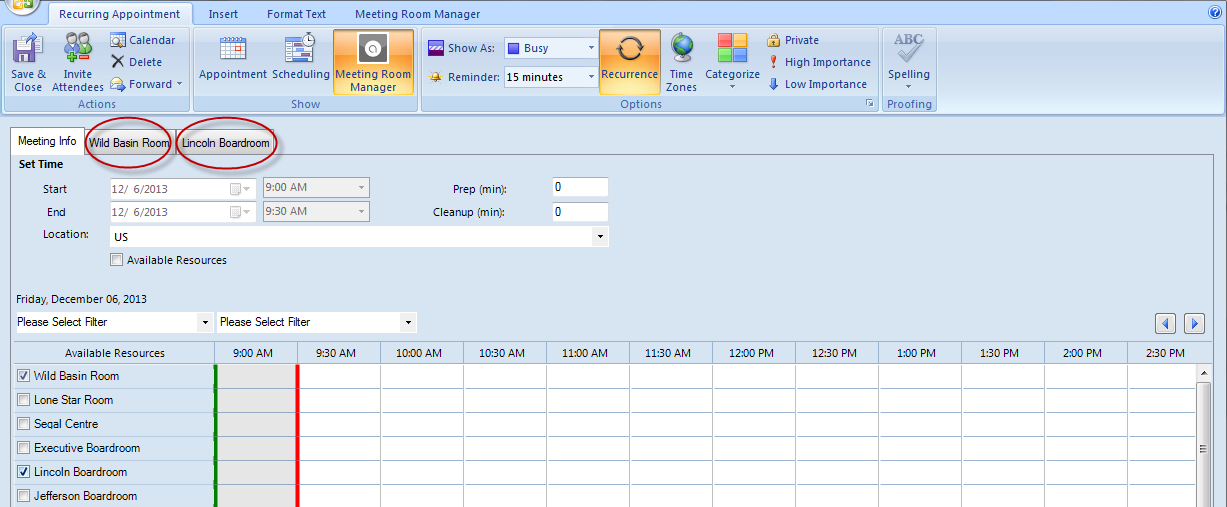
Click on the first Resource tab to enter
details. All details entered are unique to the individual
resource. For example, you can create separate catering
orders for each resource and have a different number attending.
When details have been entered for all
resources, select Save and
Close or Send Invitation.
If there are any conflicts with your selected dates and resources, the Meeting Conflict window will open, and you can either assign exceptions or skip the dates altogether.
|
|
We are interested in hearing from you about our products. Visit our customer support portal. Written for Meeting Room Manager 10.0, March 2014, Copyright © 2014 Asure Software Inc. |