Organizations that implement a workflow that includes Tentative Reservations, MRM Requests or Wait Listed reservations will need to designate Location Admins to manage these reservations. This chapter details the admin functions required for these different workflow options.
When reservations are created in a tentative status, they display in the Confirm & Approve queue where they can be reviewed by an Admin for approval.
End user creates a new reservation that is saved in a tentative status.
Select Confirmation in the MRM Task Bar. The Meeting Confirmation screen appears.
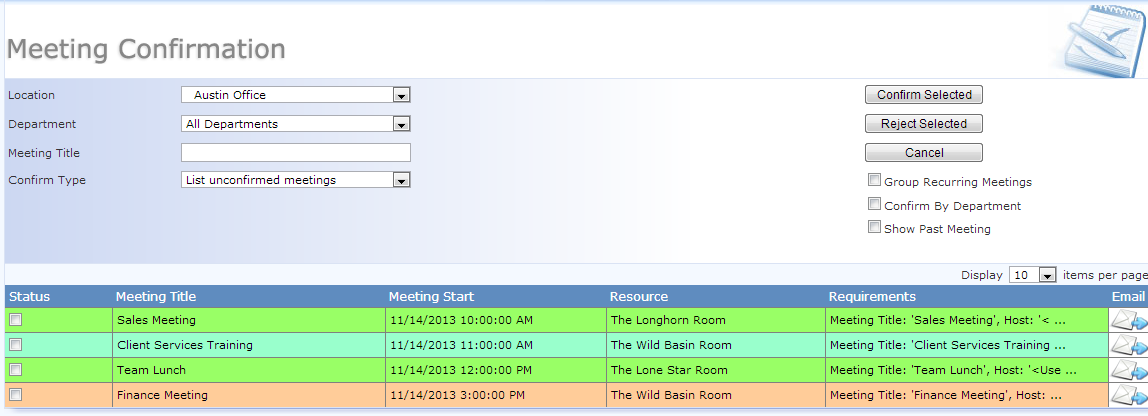
The Meeting Confirmation queue can be filtered by different search criteria:
Location – this field defaults to the default location set in the user profile of the logged in user. This location may need to be changed to view all tentative reservations.
Department – a customizable value list in the Reservation and Request Forms, this defaults to All Departments
Meeting Title – this field is left blank by default, but allows an admin to search for a specific reservation
Confirm
Type – this field defaults to ‘List Unconfirmed Meetings’. Other
options are ‘List Requested Meetings’ and ‘Show Wait Listed Entries’.
There are three additional options to modify the queue display:
Group Recurring Meetings – recurring reservations will display as individual entries for individual confirmation. Select ‘Group Recurring Meetings’ to condense those meetings into a single entry for one-click confirmation.
Confirm by Department – available only with the Social View Request Form, this option displays reservations by Department.
Show
Past Meetings – displays tentative reservations with a start date
prior to today’s date.
To view the details of a reservation,
click directly on the reservation title. To return to the
Confirmation queue, select Confirm
in the MRM Task Bar.
If you are utilizing the Confirmation email template, select the email icon next to the reservation to generate the confirmation email.

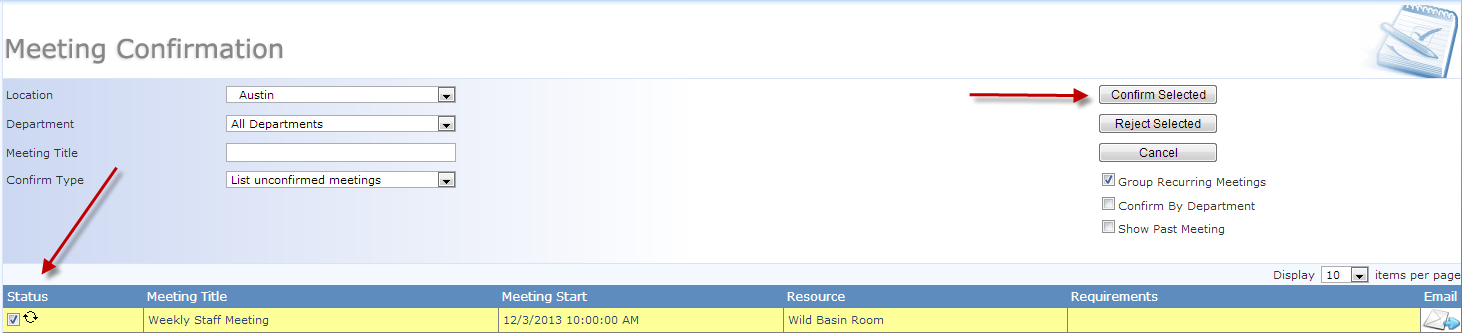
To confirm a reservation, simply check the box next to the reservation and select Confirm. In this example, notice the recurring symbol next to the checkbox, indicating that this is a recurring reservation. All instances will be confirmed with a single click since the “Group Recurring Meetings” option is selected.
 If you are using the Confirmation email, you must send the email
prior to confirming the reservation. Once
the reservation is confirmed, it is removed from this queue, and the
If you are using the Confirmation email, you must send the email
prior to confirming the reservation. Once
the reservation is confirmed, it is removed from this queue, and the
email icon is no longer available. This email does not send automatically upon selecting Confirm.
Once a reservation has been confirmed, any edits to that reservation will reset the status to Tentative, and the reservation will return to the Confirmation queue for approval.
|
|
We are interested in hearing from you about our products. Visit our customer support portal. Written for Meeting Room Manager 10.0, March 2014, Copyright © 2014 Asure Software Inc. |